This article explains how to generate and use the Message Tracking report in Messages XR Enterprise to view delivery data, message status, and engagement across all message types and schools.
💡Quick answers
- Where do I find the Message Tracking report? Navigate to Reports > Message Tracking tab, or find it in the Messages category by scrolling down in the Reports area.
- What data can I see in a Message Tracking report? You can view data on every message type, delivery status (Current, Future, or Complete), school-level breakdowns, and progress bars showing successful vs. failed deliveries.
- What does the green bar vs. the blue bar mean on the progress indicator? Green represents successful deliveries; blue represents failed deliveries.
- Filtering a Message Tracking report to one specific school? Use the School dropdown in the report criteria to select an individual school - district administrators can view all schools or just one.
- Can I track a message that is still being sent? Yes, messages currently processing show a "Current" status and you can click the progress icon to capture a live snapshot of delivery progress.
What can I see in a Message Tracking report?
- data on every message type
- data on each individual school or all schools pulled together (for district administrators)
- a status if message is still sending or completed
- progress capture (click the progress icon)
Let’s go through the steps involved in generating a Message Tracking Report.
Step 1: Reports > Message Tracking tab
Navigate to the Reports area > click to open the Message Tracking tab.
You can also find Message Tracking in the Messages category by scrolling down a bit.
Step 2: Configure which messages you want to track
- School: Allows district administrators to view reports from all schools, or just from one selected school, whatever the preference. School administrators and principals only have the ability to run this report for their individually assigned school.
- Message Category: Select All or only the categories you’d like to see data on.
- Data Range: Set a range to display only those messages sent during the desired range.
-
Sort by: Choose how you’d like your results to display on the screen:
- Start Time
- Message
- School
- Total Recipients
- Delivery: Select only messages sent by specific delivery method(s).
-
Status: This is an area that is set to show all messages that are:
- Current: The message has entered the queue and is currently processing.
- Future: The message is scheduled for some point in the future.
- Complete: Once a message has fully sent, it will change to “Complete.”
-
Color Progress Bar: Check the colors on the progress bar next to the delivery method that will represent the success of the message send of successful versus unsuccessful deliveries.
- Green bar: Successful deliveries
- Blue bar: Failed deliveries
Step 3: Click Generate report
When you have set your report criteria, click the Generate report button. See your results populate below.
Step 4: Analyze your report results
Click the Filter options bubble to collapse your filters and have more room on your screen to view your results.
Delivery method icons
You will see these icons representing different delivery methods in your reports:
|
|
|
|
|
Mobile app |
|
|
SMS/Text message |
|
|
Voice |
|
|
|
|
|
X/Twitter |
|
|
Feeds |
Here's more information about your report analysis columns:
- Message Column: Don’t remember which message the row refers to? Click the message to open it in a new window. Back arrow to get back to your report.
- Type Column: Here you'll see icons reminding you which delivery modes were used in a particular message. Hover on each icon to learn which type it is.
- School Column: Learn which campus sent the message.
- Start Time Column: See the time when a message send process was initiated.
- Status Column: This status tells you where the message currently resides within the sending process.
- Total Column: How many total messages are included and being sent.
-
Progress Column: The colors on the progress bar represent successful versus unsuccessful deliveries with a colored bar:
- Green bar: Successful deliveries
- Blue bar: Failed deliveries
Important Note
Once you click Generate Report, the details displayed are static results and the Sending Status will not refresh while you are viewing the report. Refresh your browser window to re-generate your results and get the most current status.
After a message is sent, delivery statuses update automatically on a schedule:
- Text messages: about 15, 30, and 45 minutes after sending.
- Voice messages: about 15 and 45 minutes after sending.
You can still use Refetch Details to get the latest status at any time.
- Click the Arrows at the bottom right to view more results.
-
Print or Export your results to be able to manage them in a way that works best for you and your team.
- Print: Opens up your Print Preview window. Select Save as PDF if you’d like to send a digital snapshot to someone.
-
Export Report window:
- Download results: The report results will be downloaded as a .csv file.
- Email results: Enter an email address to have these results emailed to you.
- Download results: The report results will be downloaded as a .csv file.
Check message progress tabs in Progress Column
Hover on the delivery method icon in the Progress Column to get more information!
Click on the delivery method icon in the Progress column to drill down a bit deeper. A new window will open.
Here you can learn more about those that were delivered versus undelivered, including:
Progress tab
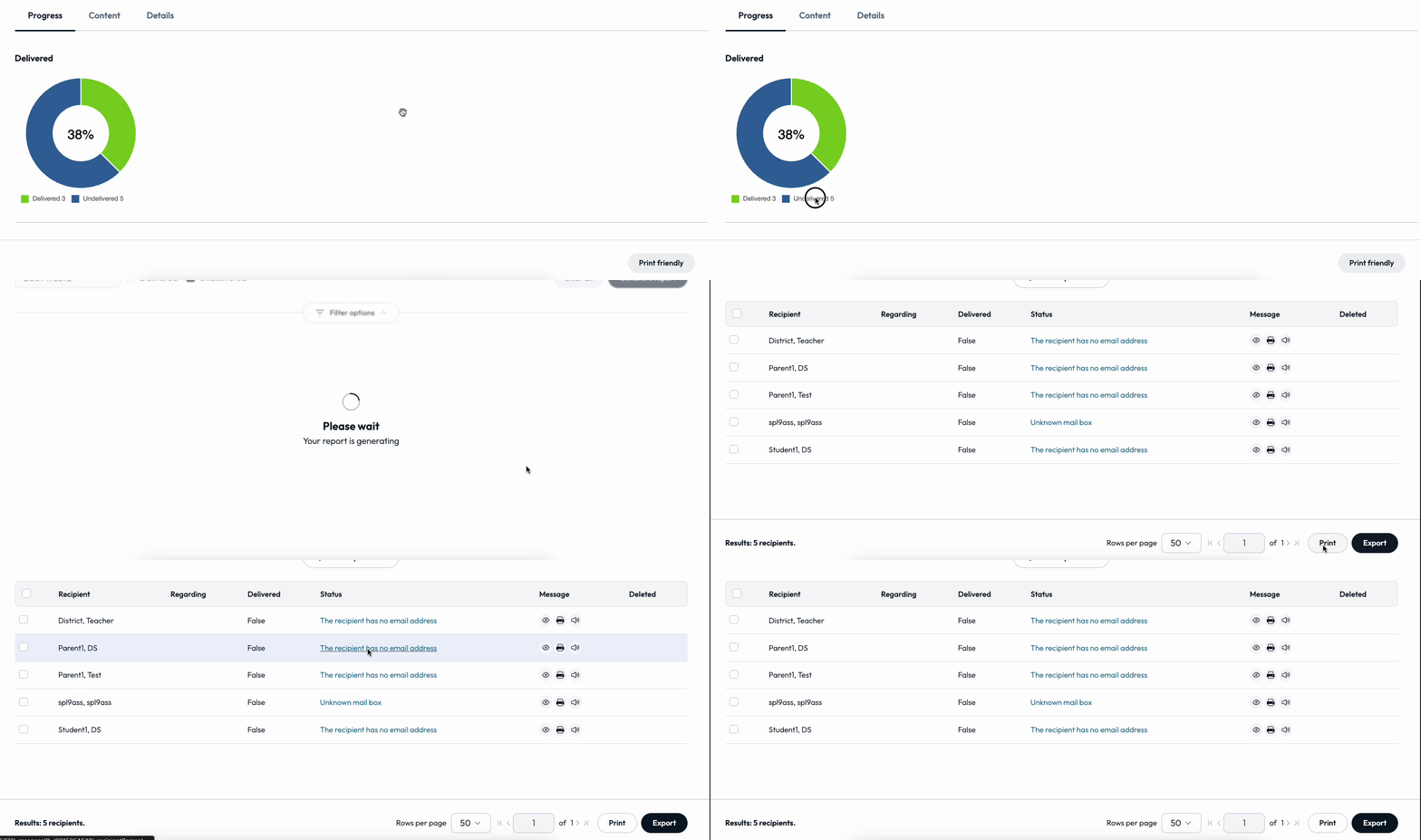
The progress wheels provide visuals of the percent of messages that were delivered or undelivered to recipients.
-
- Here you can see totals and percentages with a key under each wheel.
Drill down even further!
Click on a color on the progress wheel to dig even deeper, for example, into the "Undelivered" messages.
-
- Click on the sub-heading word Delivered to open up the Delivered details window
- From your delivered data, you have more options:
- Check the box next to Recipients to send a new message to them
- Click on icons in the Message column to get more information
- From your delivered data, you have more options:
- Click on the sub-heading word Delivered to open up the Delivered details window
-
Eyeball: View the Message contact details
-
Print: Print out the user’s details
-
Speaker: Listen to an audio message of the user’s details
Content and Details tabs
- Content tab: See the actual message that was sent out to each delivery mode or channel, and even Print the message out with the Print button at the bottom.
- Details tab: View all message details listed out for your convenience, including: message category, sender, recipients (and even click to View recipients), time created, time sent, whether blackout times were followed, and more. Print message details out for your records or to use for your analyses.
Important Note on Canceling messages
If you wish to edit or cancel messages, you must do so at least five minutes before the scheduled start time to ensure messages are not already queued for delivery.
Re-generate reports until you are satisfied!
You can reconfigure your fields and generate new reports to display the data you are looking for. The process is so quick that you can be assured that you’ll find one that works perfectly for your needs at the moment.
Step 5: Schedule report
You can schedule a report to be generated on a regular basis. Maybe your financial officer wants a weekly report or your cafeteria managers need a report weekly to have available for parents needing to know their students’ lunch balances.
Here’s how to schedule a report:
- Configure the settings for the report you’d like to schedule.
- Want to check to make sure it’s what you want? Click Generate report to have a look.
- Click the Schedule button in the bottom right corner.
- Report name: Give your scheduled report a name that helps you easily identify it in your list of all reports.
- Send time: What time will the report be pulled?
- Repeat weekly on: How often do you want this report to be generated and sent?
- Send to: Enter email addresses who will receive this report on the scheduled date/time.
Best Practice: Post-Report Actions
Once you have viewed your Message Tracking reports, you may be wondering what to do with your results. Did you know that you can pull reports from the data in your Progress tab into new reports and lists of data?
For example, view all of the Undelivered messages and Export a report so that you can look into getting these resolved. Check boxes to attempt to send another message out to these recipients.
A few ways to resolve bad data
- Analyze bad data report and replace invalid phone numbers with correct ones.
- Update and Verify Phone Numbers
- Follow Up with Unanswered Calls
- Investigate and resolve issues with operator intercepts and blocked numbers to ensure calls go through.
- Contact recipients to obtain missing SMS numbers (13% of recipients are missing).
- Identify and resolve the reasons behind SMS delivery failures and blocked numbers to ensure successful delivery.
- Collect and update email addresses.
- Investigate and resolve any SMTP errors to ensure successful email delivery.